说明
Rclone项目从1.54.0版开始已经支持挂载世纪互联版OneDrive,不再需要使用魔改版了;
如果需要使用Google Drive网盘,可以看这里:Rclone挂载Google Drive为本地硬盘
Rclone的一些使用方法:Rclone 使用教程 - 常用命令参数
获取Token
关于世纪互联版的OneDrive使用Rclone挂载还需要前往 Azure 开通Azure Active Directory服务及权限,这里就不讲解了,具体可以Google寻找教程;
国际版获取Token
前往Rclone官网下载最新版的Windows程序,解压后得到rclone.exe文件,然后将其复制到C盘根目录下;
然后打开电脑的cmd(命令提示符)输入以下命令获取Token
// 切换到C盘根目录
cd/

// 获取Token
rclone authorize "onedrive"
输入命令后会自动打开浏览器,在浏览器中登录你要使用的OneDrive账号并确认授权给Rclone
授权完成后会出现以下界面,即代表成功了;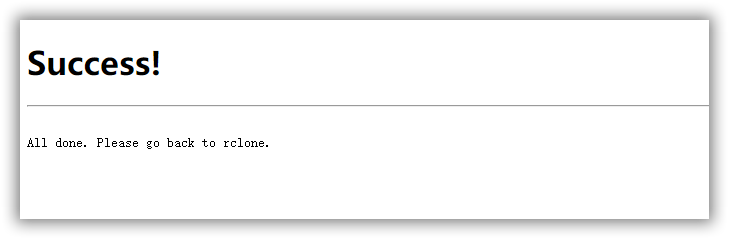
然后回到cmd(命令提示符)记录下出现的Token即可
Paste the following into your remote machine --->
{"access_token":"XXX","token_type":"Bearer","refresh_token":"XXX","expiry":"2021-07-20xxx"}
// 上面一大串就是Token,包含字符头的 "{" 和字符尾的 "}" 全部都要复制下来
<---End paste
世纪互联获取Token
世纪互联版的OneDrive不能直接获取,需要在Windows中按下面的方式配置一遍;
需要注意的是在选择Remote config时输入Y然后在浏览器中登入你的账号,
配置完成后Rclone会显示出Token,最后记录下Token即可;
Choose a number from below, or type in your own value
 1 / Microsoft Cloud Global
   \ "global"
 2 / Microsoft Cloud for US Government
   \ "us"
 3 / Microsoft Cloud Germany
   \ "de"
 4 / Azure and Office 365 operated by 21Vianet in China
   \ "cn"
region> 4  #选择4
Edit advanced config? (y/n)
y) Yes
n) No (default)
y/n> n  #这里选择n
Remote config
Make sure your Redirect URL is set to "http://localhost:53682/" in your custom config.
Use auto config?
 * Say Y if not sure
 * Say N if you are working on a remote or headless machine
y) Yes (default)
n) No
y/n> y #选择y   // 注意这里选择Y然后回车
Linux安装Rclone
CentOS 安装
curl https://rclone.org/install.sh | sudo bashDebian / Ubuntu 安装
wget https://downloads.rclone.org/rclone-current-linux-amd64.zip

unzip rclone-current-linux-amd64.zip

chmod 0777 ./rclone-*/rclone

cp ./rclone-*/rclone /usr/bin/

rm -rf ./rclone-*
适用于ARM框架安装(如甲骨文Oracle等)
wget https://downloads.rclone.org/rclone-current-linux-arm64.zip

unzip rclone-current-linux-arm64.zip

chmod 0777 ./rclone-*/rclone

cp ./rclone-*/rclone /usr/bin/

rm -rf ./rclone-*
Linux配置Rclone
输入以下命令开始配置Rclone
rclone config国际版OneDrive
root@SunPma ~ # rclone config
No remotes found, make a new one?
n) New remote
s) Set configuration password
q) Quit config
n/s/q> n  // 选择N 设置新的远程链接


Enter name for new remote.
name> M365  // 设置新远程链接名称


Option Storage.
Type of storage to configure.
Choose a number from below, or type in your own value.
...

33 / Mega
   \ (mega)
34 / Microsoft Azure Blob Storage
   \ (azureblob)
35 / Microsoft Azure Files
   \ (azurefiles)
36 / Microsoft OneDrive
   \ (onedrive)
37 / OpenDrive
   \ (opendrive)

...
Storage> 36  // 选择需要的选项


Option client_id.
OAuth Client Id.
Leave blank normally.
Enter a value. Press Enter to leave empty.
client_id>   // 直接回车


Option client_secret.
OAuth Client Secret.
Leave blank normally.
Enter a value. Press Enter to leave empty.
client_secret>   // 直接回车


Option region.
Choose national cloud region for OneDrive.
Choose a number from below, or type in your own value of type string.
Press Enter for the default (global).
 1 / Microsoft Cloud Global
   \ (global)
 2 / Microsoft Cloud for US Government
   \ (us)
 3 / Microsoft Cloud Germany (deprecated - try global region first).
   \ (de)
 4 / Azure and Office 365 operated by Vnet Group in China
   \ (cn)
region> 1  // 选择1


Option tenant.
ID of the service principal's tenant. Also called its directory ID.
Set this if using
- Client Credential flow
Enter a value. Press Enter to leave empty.
tenant>   // 直接回车


Edit advanced config?
y) Yes
n) No (default)
y/n> n  // 选择 N 不使用高级配置


Use web browser to automatically authenticate rclone with remote?
 * Say Y if the machine running rclone has a web browser you can use
 * Say N if running rclone on a (remote) machine without web browser access
If not sure try Y. If Y failed, try N.

y) Yes (default)
n) No
y/n> n  // 选择 N


Option config_token.
For this to work, you will need rclone available on a machine that has
a web browser available.
For more help and alternate methods see: https://rclone.org/remote_setup/
Execute the following on the machine with the web browser (same rclone
version recommended):
        rclone authorize "onedrive"
Then paste the result.
Enter a value.
config_token> {"access_token":"EwBYBMl6BAA......"}
// 此处输入Token


Option config_type.
Type of connection
Choose a number from below, or type in an existing value of type string.
Press Enter for the default (onedrive).
 1 / OneDrive Personal or Business
   \ (onedrive)
 2 / Root Sharepoint site
   \ (sharepoint)
   / Sharepoint site name or URL
 3 | E.g. mysite or https://contoso.sharepoint.com/sites/mysite
   \ (url)
 4 / Search for a Sharepoint site
   \ (search)
 5 / Type in driveID (advanced)
   \ (driveid)
 6 / Type in SiteID (advanced)
   \ (siteid)
   / Sharepoint server-relative path (advanced)
 7 | E.g. /teams/hr
   \ (path)
config_type> 1  // 选择 1


Option config_driveid.
Select drive you want to use
Choose a number from below, or type in your own value of type string.
Press Enter for the default (AAEF9AE79.....).
 1 / Bundles_b896e2bb...... (personal)
   \ (AAEF9AE79.....)
 2 / OneDrive (personal)
   \ (AAEF9AE79.....)
 3 / AEEE102E-CFF8-4E2A-89C6-038... (personal)
   \ (b!msSxxqFXGE...__TgzJz1KjHmk...)
 4 / ODCMetadataArchive (personal)
   \ (b!msSxxqFXGE...__TgzJz1KjHmk...)
config_driveid> 2  // 选择2


Drive OK?

Found drive "root" of type "personal"
URL: https://onedrive.live.com?cid=AAEF9A.......

y) Yes (default)
n) No
y/n> y  // 选择 Y


Configuration complete.
Options:
- type: onedrive
- token: {"access_token":"EwBYBMl6BAA......"}
- drive_id: AAEF9AE79A8685BB
- drive_type: personal
Keep this "M365" remote?
y) Yes this is OK (default)
e) Edit this remote
d) Delete this remote
y/e/d> y  // 选择 Y 确定


Current remotes:

Name                 Type
====                 ====
M365                 onedrive

e) Edit existing remote
n) New remote
d) Delete remote
r) Rename remote
c) Copy remote
s) Set configuration password
q) Quit config
e/n/d/r/c/s/q> q  // 选择 Q 退出
世纪互联版OneDrive
root@SunPma ~ # rclone config
Current remotes:

Name                 Type
====                 ====

e) Edit existing remote
n) New remote
d) Delete remote
r) Rename remote
c) Copy remote
s) Set configuration password
q) Quit config
e/n/d/r/c/s/q> n
name> OD01      // 自定义配置名称
Type of storage to configure.
Enter a string value. Press Enter for the default ("").
Choose a number from below, or type in your own value
 1 / 1Fichier
   \ "fichier"
 2 / Alias for an existing remote
   \ "alias"
 3 / Amazon Drive
   \ "amazon cloud drive"
 4 / Amazon S3 Compliant Storage Providers including AWS, Alibaba, Ceph, Digital Ocean, Dreamhost, IBM COS, Minio, and Tencent COS
   \ "s3"
 5 / Backblaze B2
   \ "b2"
 6 / Box
   \ "box"
 7 / Cache a remote
   \ "cache"
 8 / Citrix Sharefile
   \ "sharefile"
 9 / Compress a remote
   \ "compress"
10 / Dropbox
   \ "dropbox"
11 / Encrypt/Decrypt a remote
   \ "crypt"
12 / Enterprise File Fabric
   \ "filefabric"
13 / FTP Connection
   \ "ftp"
14 / Google Cloud Storage (this is not Google Drive)
   \ "google cloud storage"
15 / Google Drive
   \ "drive"
16 / Google Photos
   \ "google photos"
17 / Hadoop distributed file system
   \ "hdfs"
18 / Hubic
   \ "hubic"
19 / In memory object storage system.
   \ "memory"
20 / Jottacloud
   \ "jottacloud"
21 / Koofr
   \ "koofr"
22 / Local Disk
   \ "local"
23 / Mail.ru Cloud
   \ "mailru"
24 / Mega
   \ "mega"
25 / Microsoft Azure Blob Storage
   \ "azureblob"
26 / Microsoft OneDrive
   \ "onedrive"
27 / OpenDrive
   \ "opendrive"
28 / OpenStack Swift (Rackspace Cloud Files, Memset Memstore, OVH)
   \ "swift"
29 / Pcloud
   \ "pcloud"
30 / Put.io
   \ "putio"
31 / QingCloud Object Storage
   \ "qingstor"
32 / SSH/SFTP Connection
   \ "sftp"
33 / Sugarsync
   \ "sugarsync"
34 / Tardigrade Decentralized Cloud Storage
   \ "tardigrade"
35 / Transparently chunk/split large files
   \ "chunker"
36 / Union merges the contents of several upstream fs
   \ "union"
37 / Webdav
   \ "webdav"
38 / Yandex Disk
   \ "yandex"
39 / Zoho
   \ "zoho"
40 / http Connection
   \ "http"
41 / premiumize.me
   \ "premiumizeme"
42 / seafile
   \ "seafile"
Storage> 26      // 选择需要挂载的项目
** See help for onedrive backend at: https://rclone.org/onedrive/ **

OAuth Client Id
Leave blank normally.
Enter a string value. Press Enter for the default ("").
client_id> 9390-XXXX     // 输入应用程序客户端ID
OAuth Client Secret
Leave blank normally.
Enter a string value. Press Enter for the default ("").
client_secret> XXX_b3Q5UW     // 输入客户端密码值
Choose national cloud region for OneDrive.
Enter a string value. Press Enter for the default ("global").
Choose a number from below, or type in your own value
 1 / Microsoft Cloud Global
   \ "global"
 2 / Microsoft Cloud for US Government
   \ "us"
 3 / Microsoft Cloud Germany
   \ "de"
 4 / Azure and Office 365 operated by 21Vianet in China
   \ "cn"
region> 4    // 选择 4
Edit advanced config? (y/n)
y) Yes
n) No (default)
y/n> n    // 选择 n
Remote config
Make sure your Redirect URL is set to "http://localhost:53682/" in your custom config.
Use auto config?
 * Say Y if not sure
 * Say N if you are working on a remote or headless machine
y) Yes (default)
n) No
y/n> n    // 选择 n
For this to work, you will need rclone available on a machine that has
a web browser available.

For more help and alternate methods see: https://rclone.org/remote_setup/

Execute the following on the machine with the web browser (same rclone
version recommended):

        rclone authorize "onedrive" -- "bdd0095e-XXX" "XXX_b3Q5UW"

Then paste the result below:
result> {"access_token":"XXX"}      // 粘贴自己的 Token
Choose a number from below, or type in an existing value
 1 / OneDrive Personal or Business
   \ "onedrive"
 2 / Root Sharepoint site
   \ "sharepoint"
 3 / Sharepoint site name or URL (e.g. mysite or https://contoso.sharepoint.com/sites/mysite)
   \ "url"
 4 / Search for a Sharepoint site
   \ "search"
 5 / Type in driveID (advanced)
   \ "driveid"
 6 / Type in SiteID (advanced)
   \ "siteid"
 7 / Sharepoint server-relative path (advanced, e.g. /teams/hr)
   \ "path"
Your choice> 1    // 选择 1
Found 1 drives, please select the one you want to use:
0: OneDrive (business) id=b!_XXX
Chose drive to use:> 0    // 选择 0
Found drive 'root' of type 'business', URL: https://xxx.sharepoint.cn
Is that okay?
y) Yes (default)
n) No
y/n> y    // 选择 y
--------------------
[OD01]
type = onedrive
client_id = bdd0095e-XXX
client_secret = XXX_b3Q5UW
region = cn
token = {"access_token":"XXX"}
drive_id = b!_XXX
drive_type = business
--------------------
y) Yes this is OK (default)
e) Edit this remote
d) Delete this remote
y/e/d> y    // 选择 y
Current remotes:

Name                 Type
====                 ====
OD01                 onedrive

e) Edit existing remote
n) New remote
d) Delete remote
r) Rename remote
c) Copy remote
s) Set configuration password
q) Quit config
e/n/d/r/c/s/q> q    // 选择 q 配置完成
版权声明:本文为原创文章,版权归 suntl.com 所有,转载请注明出处!
本文链接:https://suntl.com/659.html
友情提示:如果博客出现404或链接失效,请留言或者联系博主修复!
Failed to configure token: unexpected end of JSON inpu
老哥,自启的脚本404了
111